
Webhook Alerting
How to configure an AI Studio project to publish error notifications via webhook
Webhooks can be configured on any AI Studio project — AI Agent, AI Assistant, AI Service, or Conversation Analyst — to push notifications whenever an error occurs during a live conversation, AI service request, or Conversation Analyst run. This provides an additional mechanism for monitoring and alerting outside of the Quiq platform.
The published payload includes the errorMessage, projectId, eventType, and other pertinent information about the error.
Webhook alerts are only triggered by errors on live/published projects. Errors that occur while working in AI Studio during testing will not generate webhook requests.
Setup
Webhook Configurations are available on the Advanced tab of the Overview page for any AI Studio project, or from Admin > Bots when viewing an AI Agent.
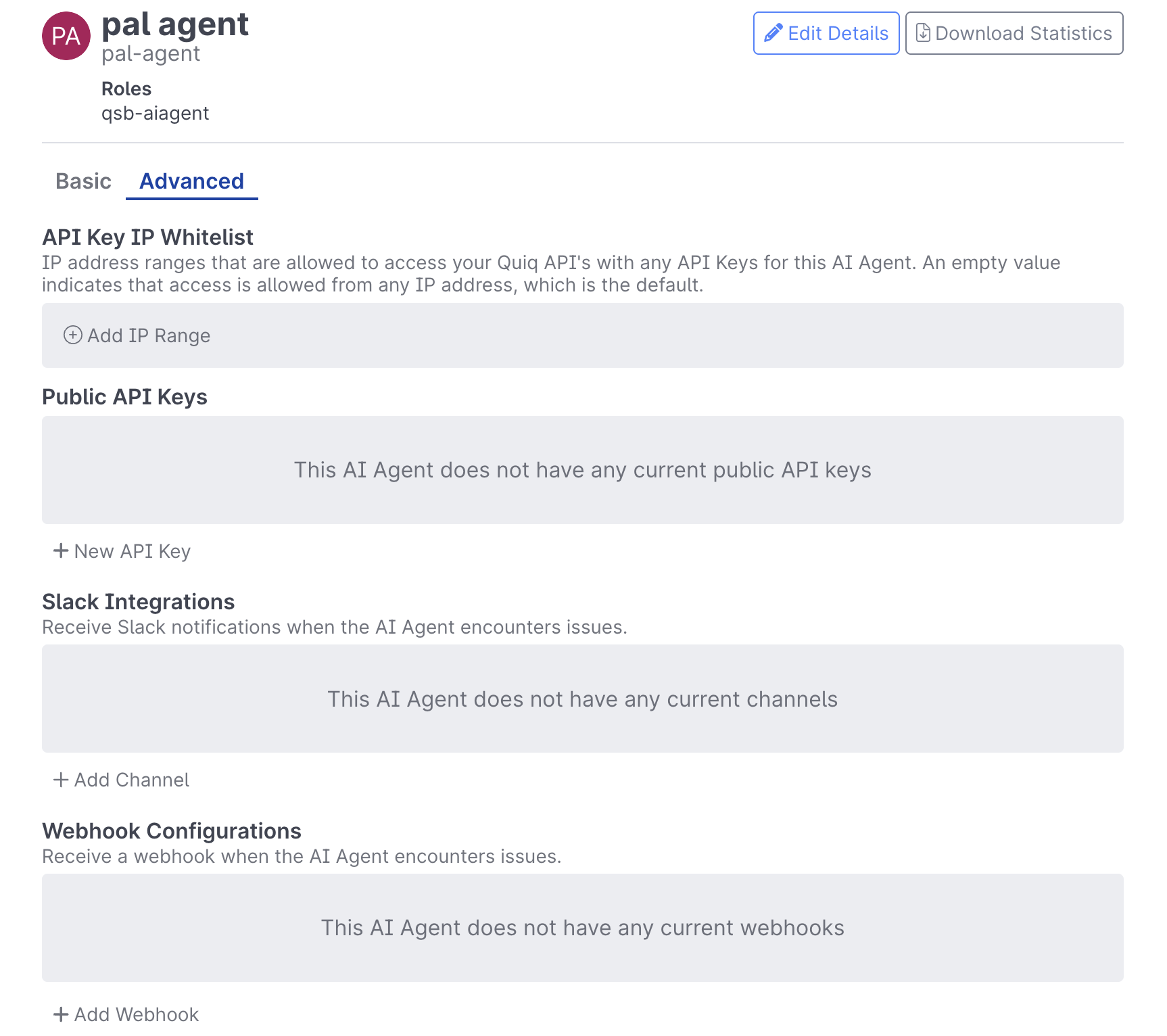
- Navigate to your AI Studio project and click on the Advanced tab
- Locate the Webhook Configurations section
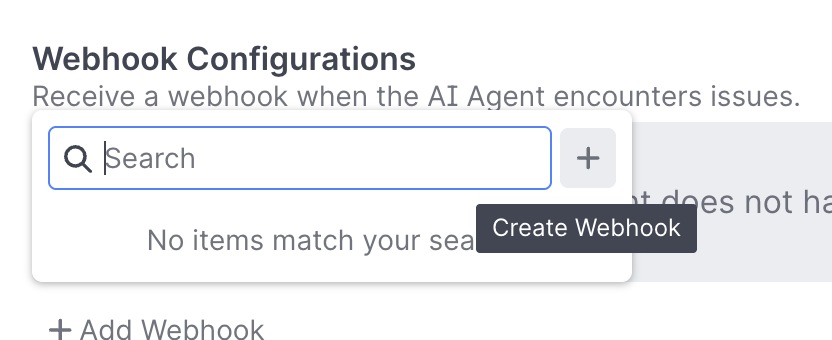
- Click + Add Webhook to open the Webhooks picker
- To use an existing webhook, select it from the list. To create a new one, click + Create Webhook:
- In the New Webhook modal, enter the following:
- URL (required): Must be a valid HTTPS URL and unique across all AI Studio projects
- Custom User Agent (optional): Optionally override the user-agent sent to your server
Managing Webhooks
Two actions are available directly on each webhook listed in the Webhook Configurations:
- Edit: Opens the Editing Webhook modal where the URL and Custom User Agent can be modified. Because a webhook can be shared across projects, a list of all projects it is currently assigned to is shown. A Delete Webhook button is also available here — note that deleting a webhook permanently removes it from all projects it is assigned to.
- Remove Webhook: Removes the webhook from that specific project only. The webhook remains available for use on other projects.
Verifying the Setup
Alerts will only be published for errors that occur on the live/published version of a project. You can verify your webhook is working correctly by taking the following steps:
-
Create a new draft of your project
-
Insert a new action somewhere in your flow that uses the Flag as Error action
Note: if you do this on a live project with a lot of traffic, you may want to make the condition selective, or place it deeper in the flow to limit the number of alerts generated
-
Save and publish your project, then trigger it through a live endpoint (not through the AI Studio test interface)
-
You should receive a webhook request at your configured URL containing the error details
-
Remove the Flag as Error action you added and republish
Updated 6 months ago