
Webchat to Messaging
Learn how to move a conversation from Web Chat to a messaging channel like SMS
Overview
There are scenarios where you may want a customer to move from Web Chat to a native Messaging channel (such as Apple Messages or SMS). This is often necessary when a customer needs to leave their browser but wants to continue the conversation, or when they need to be able to send a high-quality image or file more easily.
QR Code vs Outbound Template
There are two ways to shift a customer from web chat to messaging, either via a QR code or link, or via an Outbound Template.
A QR code or link can be initiated by either a human agent or an AI Agent using a Catalog Message, while an Outbound Template must come from an AI Agent.
Prerequisites
Active Messaging Channels: You must have at least one messaging platform (e.g., Apple Messages for Business or SMS) configured in your Quiq Admin settings.
Permissions: You must have Admin access to create and edit Catalog Messages.
Building a QR Code or Link
We'll start by building out a QR code via a Catalog Messages.
If you're tenant is missing any of the features called out below, please reach out to your account mananger for help getting started.
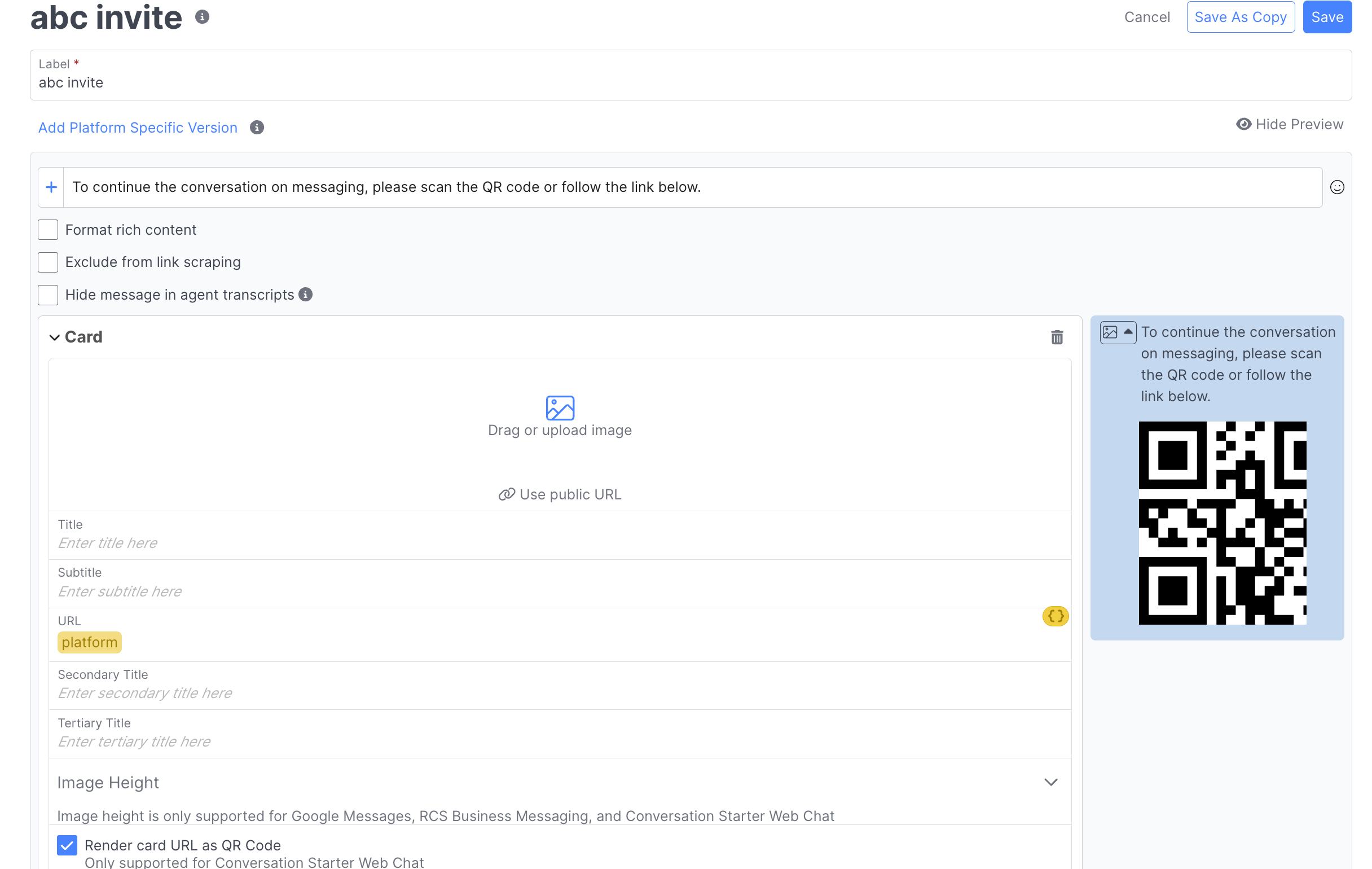
A sample Platform Invitation Catalog Message
Part 1: Building your Catalog Message
-
Navigate to Admin -> Catalog Messages and select New Message
-
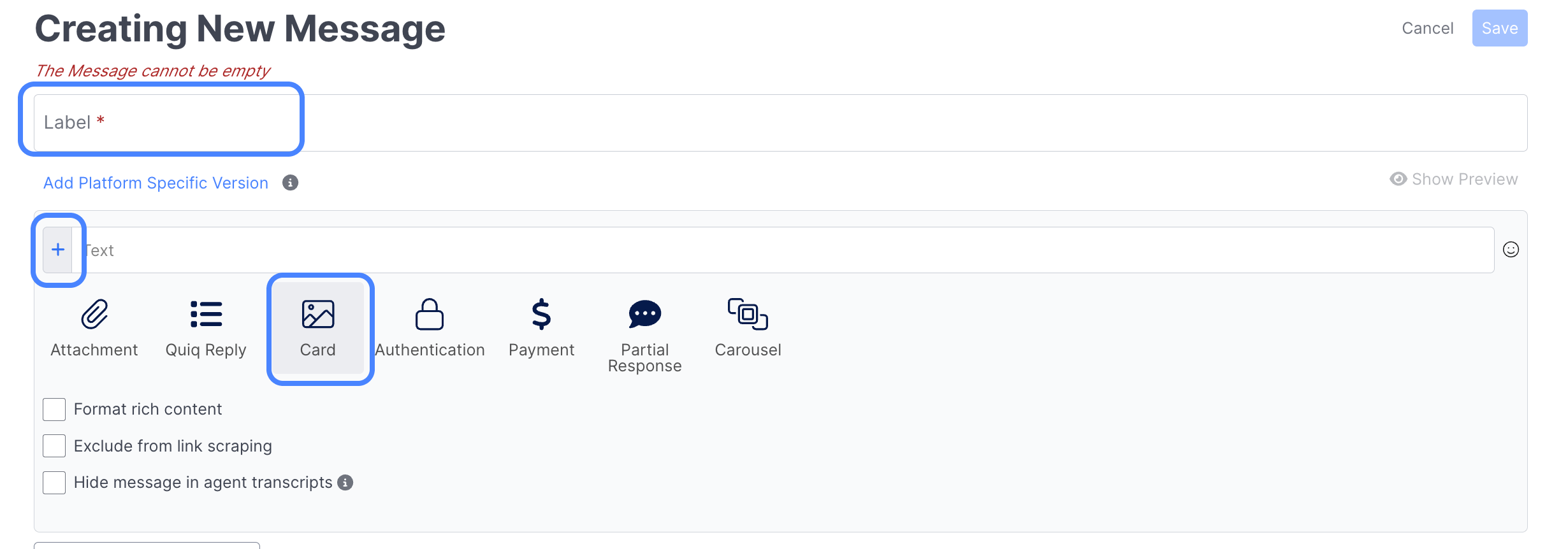
Give your new Catalog Message a recognizable name (e.g., "Platform Invitation"). Then click the Plus button next to the text input area and select Card:
-
Set the availability to Available Everywhere to ensure both AI and human agents can use it. Define a shorthand "trigger" (e.g., /move to messaging) so agents can quickly insert this message during a live chat:

-
To ensure the message sends the user to the correct messaging app, you must use dynamic text in the card URL field.
-
In the URL field for you card, type a variable name inside double curly brackets, such as
{``{platform}}`: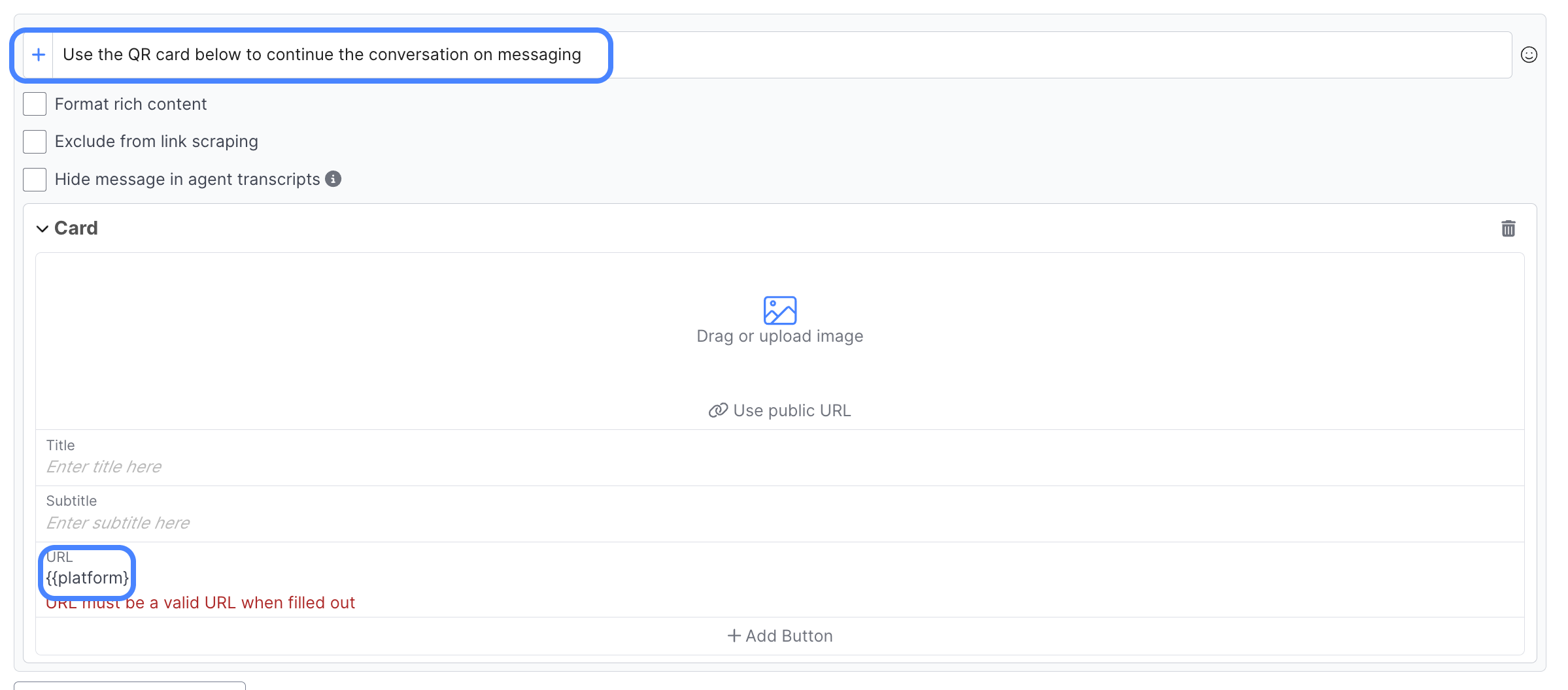
-
Once you've added your curly brackets, click on the Configure Dynamic Text button in the top right corner of the URL section:

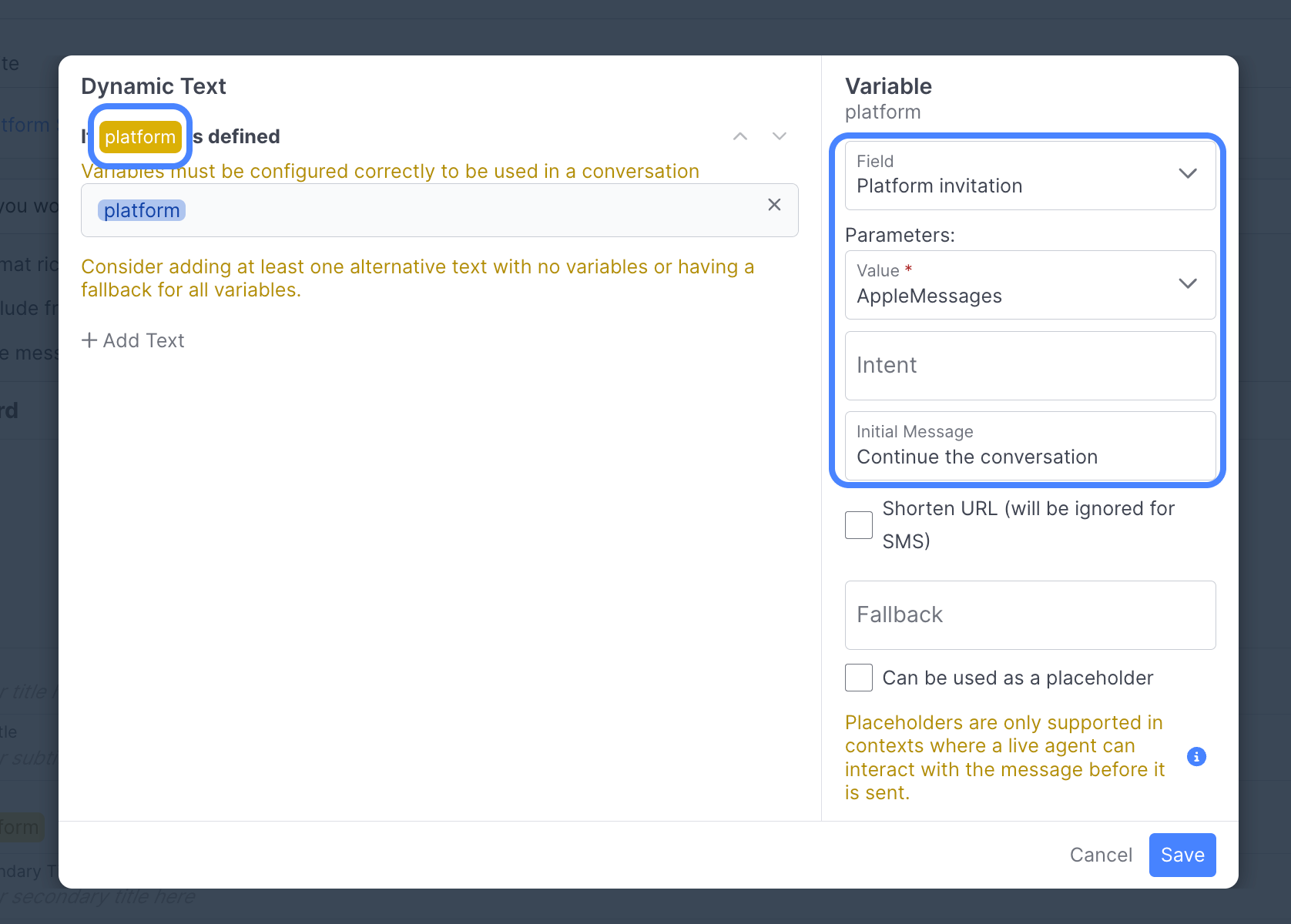
- In the Dynamic text modal, Select the Platform variable in the top left, and then select the Platform Invitation field in the right hand sidebar. There are additional Parameters to define:
- Value: Select the specific platform the user will be shifted to (e.g., sms).
- Intent: an optional value that can be used to condition off in rules or in your AI Agent.
- Initial Message: Enter the text that will be pre-filled in the customer's messaging app (e.g., "I'd like to continue our conversation here.").
-
You've now successfully set up your Platform Invitation message!
QR Code vs link
The way you want your platform invitation to appear depends on the conversation context:
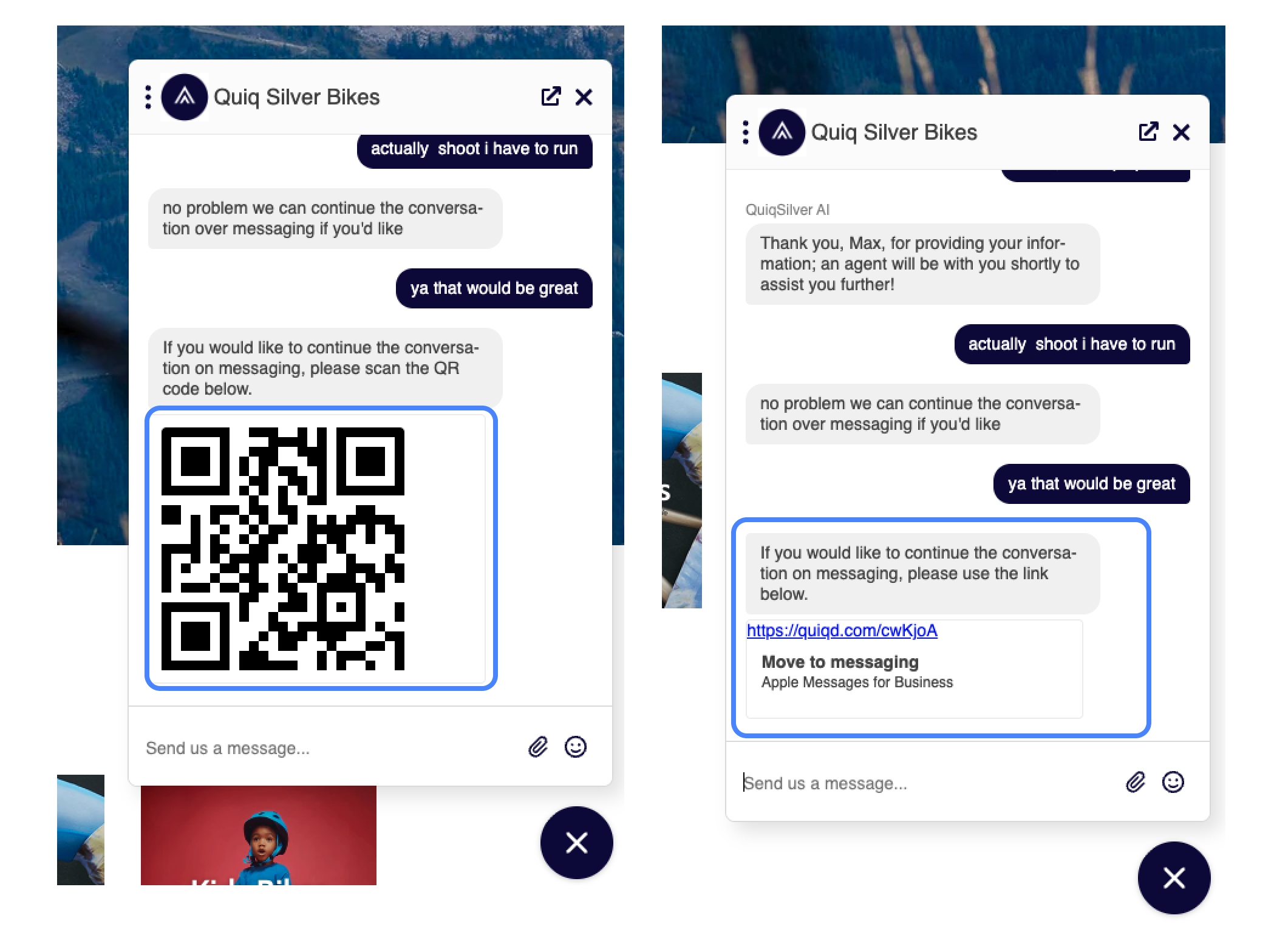
QR Codes: These are ideal for customers on desktop browsers. They can scan the code with their mobile camera to instantly move the conversation to their phone.
Ensure the Render card URL as QR Code checkbox is selected. This is currently supported for Conversation Starter Web Chat.
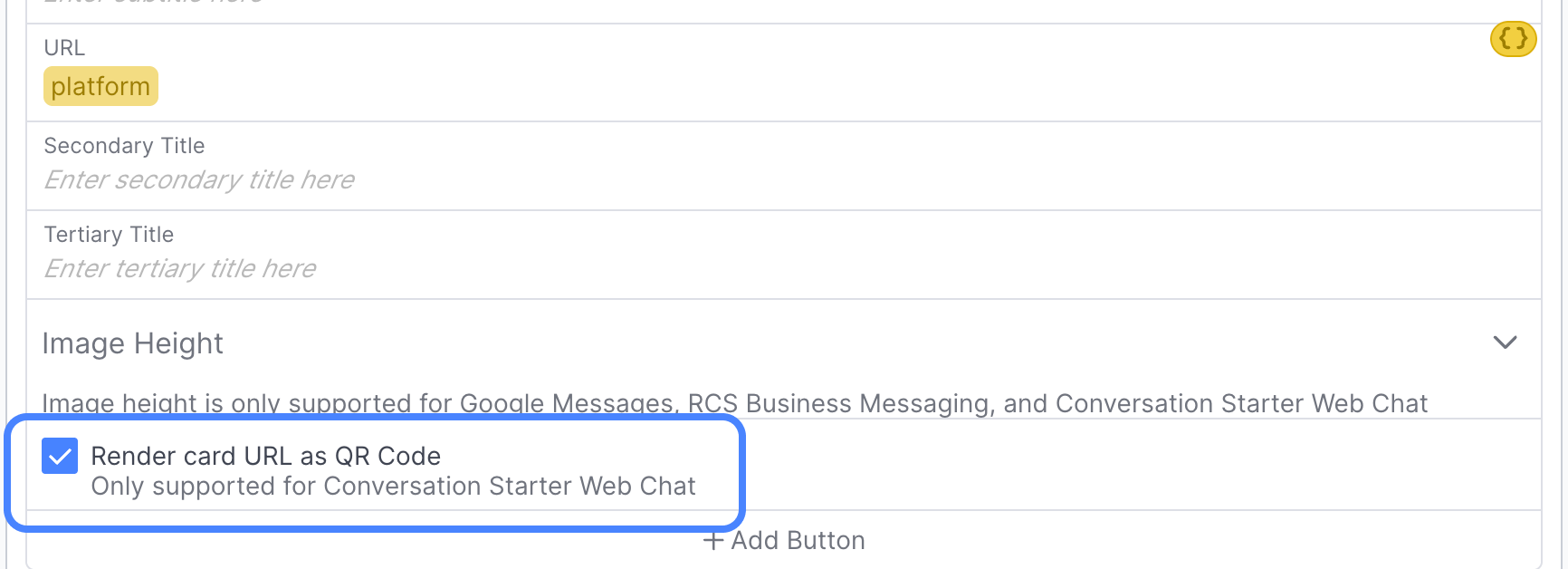
Direct Links: If a customer is already on a mobile browser, a clickable link is more effective for opening the messaging app directly.
Using your Message
Once you've created your catalog message, can leverage it in a few ways:
AI Studio
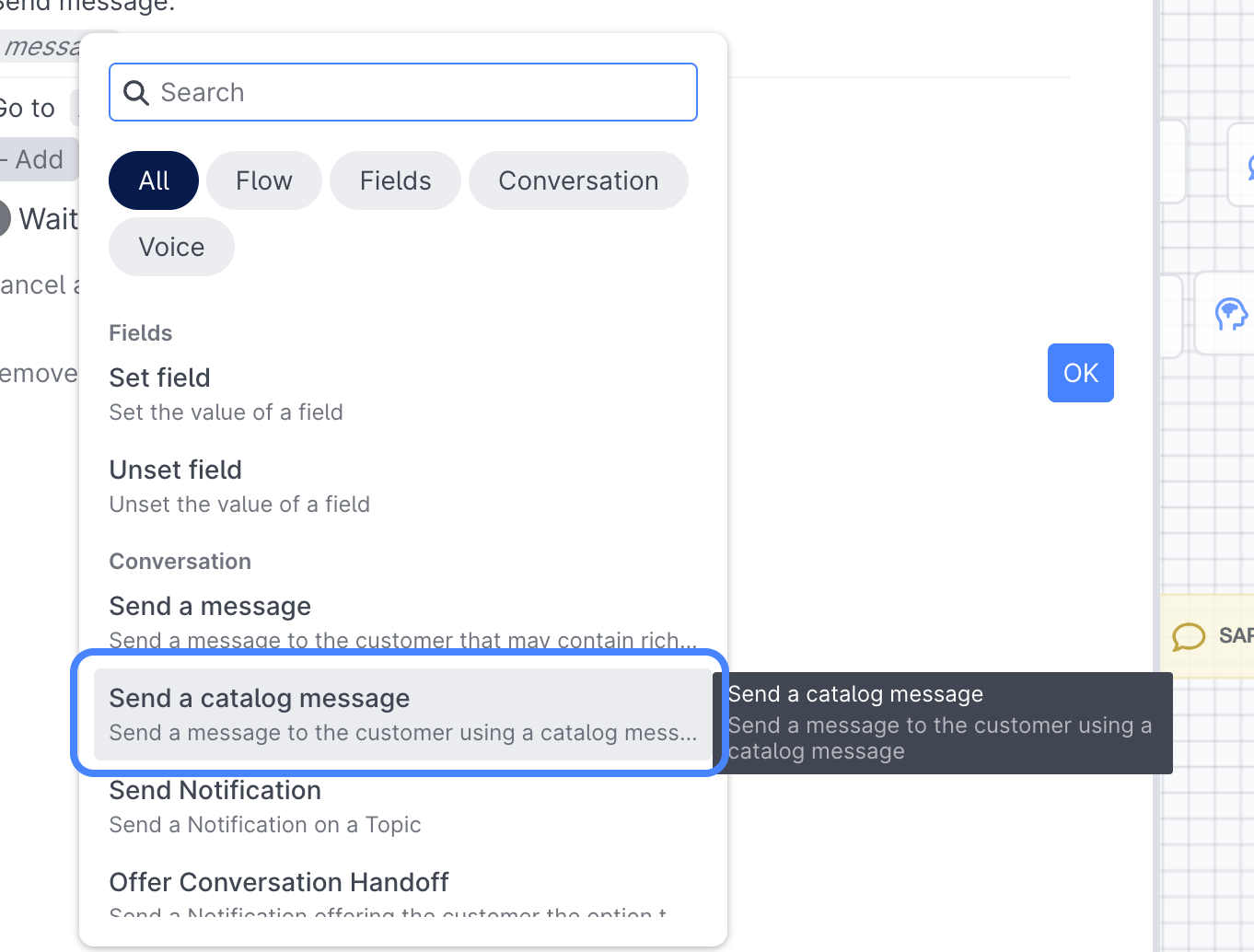
In your AI Agents or AI Assistants you can leverage the Send Catalog Message action when appropriate to send your catalog message:
Human Agents
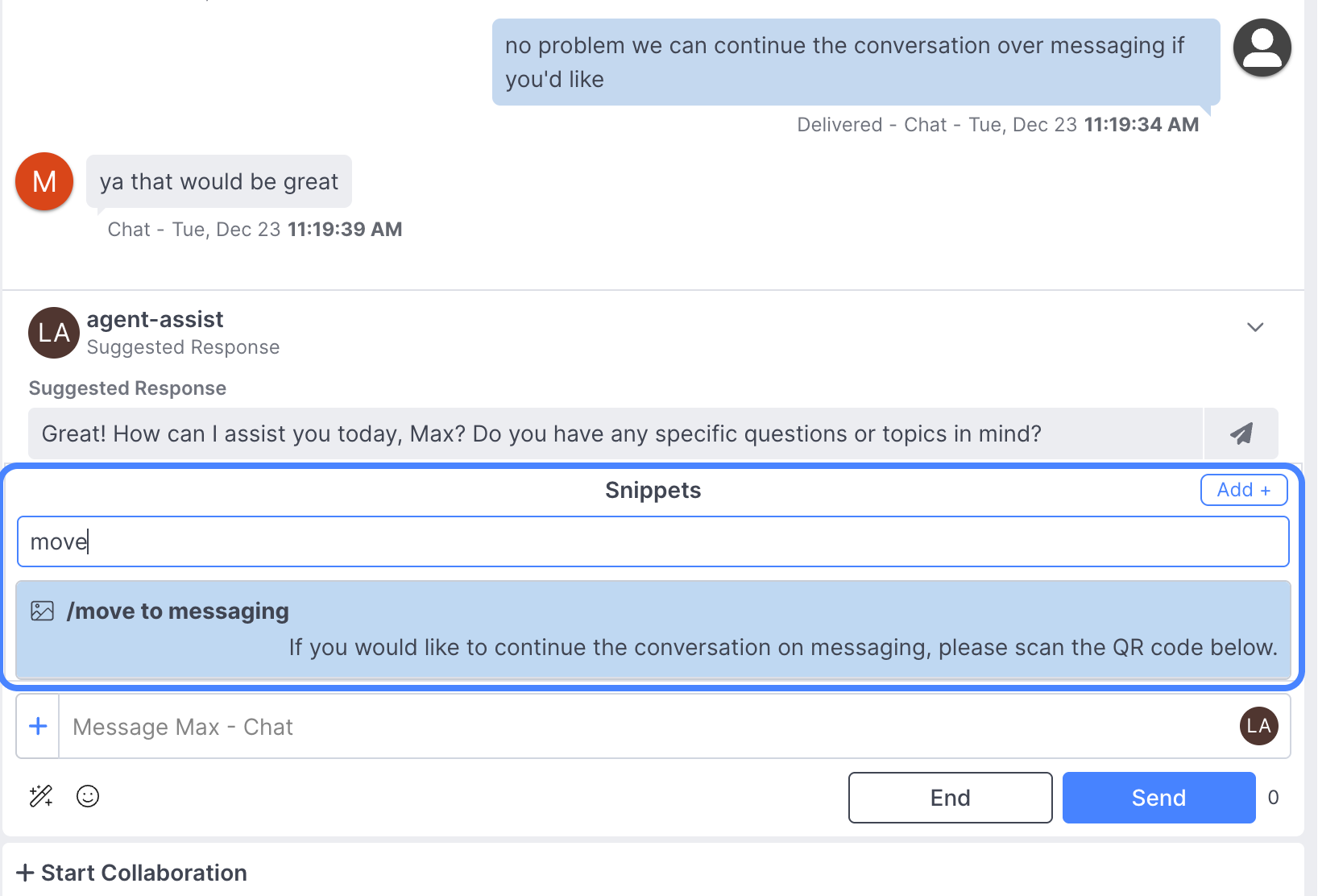
Agents can type their defined trigger (e.g., /move to messaging) in the chat console. A snippet will appear, allowing them to send the card to the customer.:
And your end users can now easily use that message to shift channels:
Shifting the conversation
Once the user scans the QR code or clicks the link, the agent's transcript will note: "Conversation platform changed". The agent can then continue the conversation seamlessly within the same window, even though the customer is now using a different app:
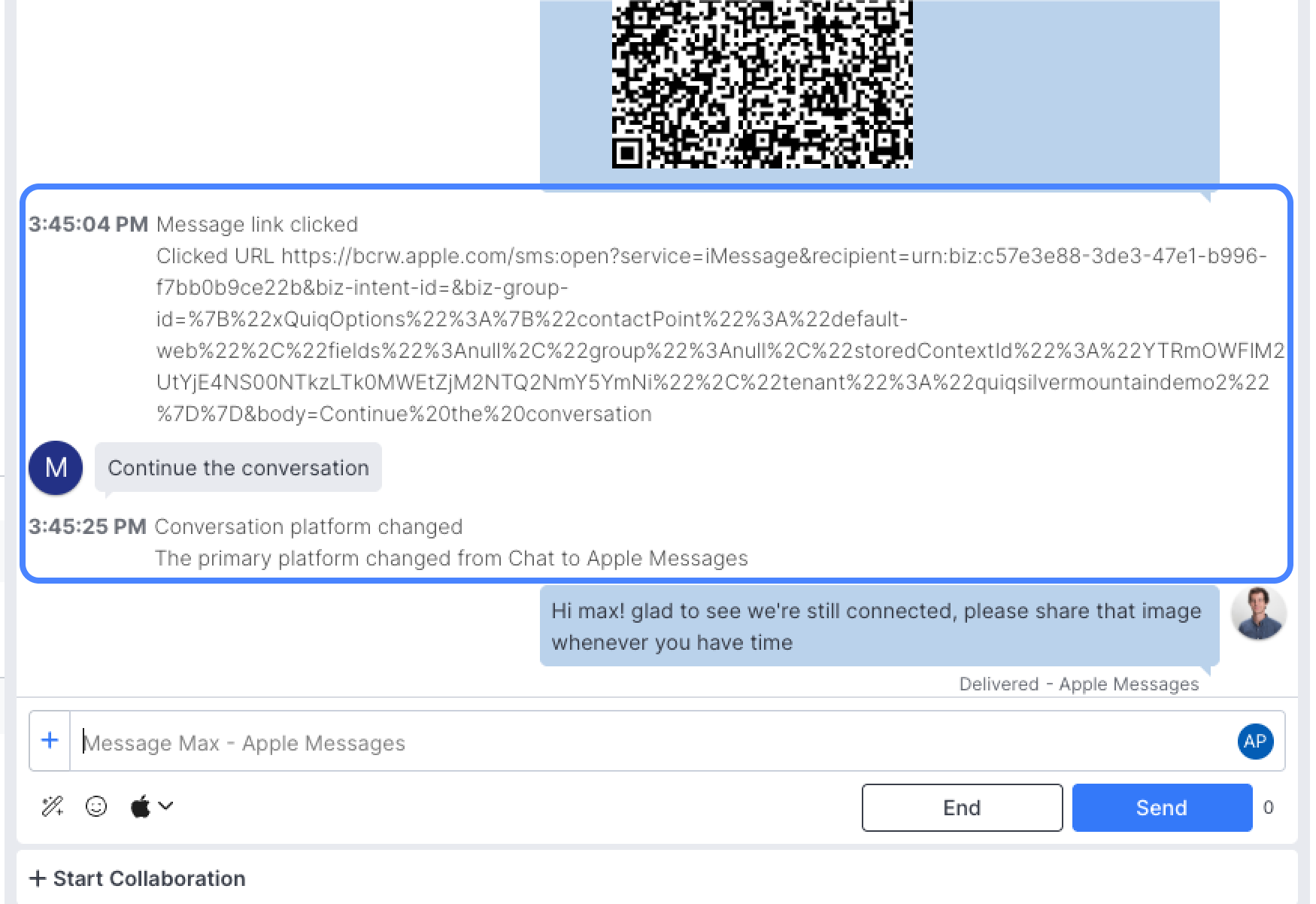
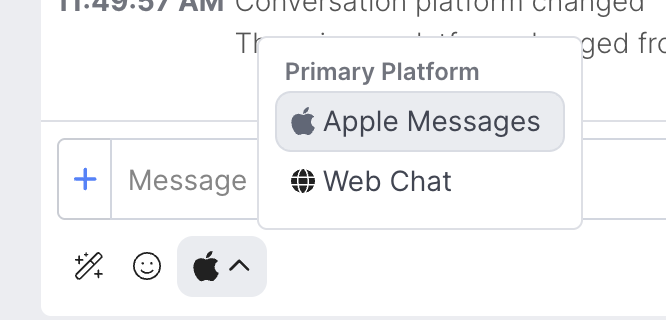
Shifting ChannelsIf a user has an active conversation on multiple channels, the agent can select choose which channel to message the customer on using the toggle in the bottom of the webchat:
Using an Outbound Template
Like the example above, an Outbound Template leverages a Catalog Message, but Outbound Templates can only be sent by an AI agent.
Part 1: Building your Catalog Message
- Navigate to Admin -> Catalog Messages and select New Message
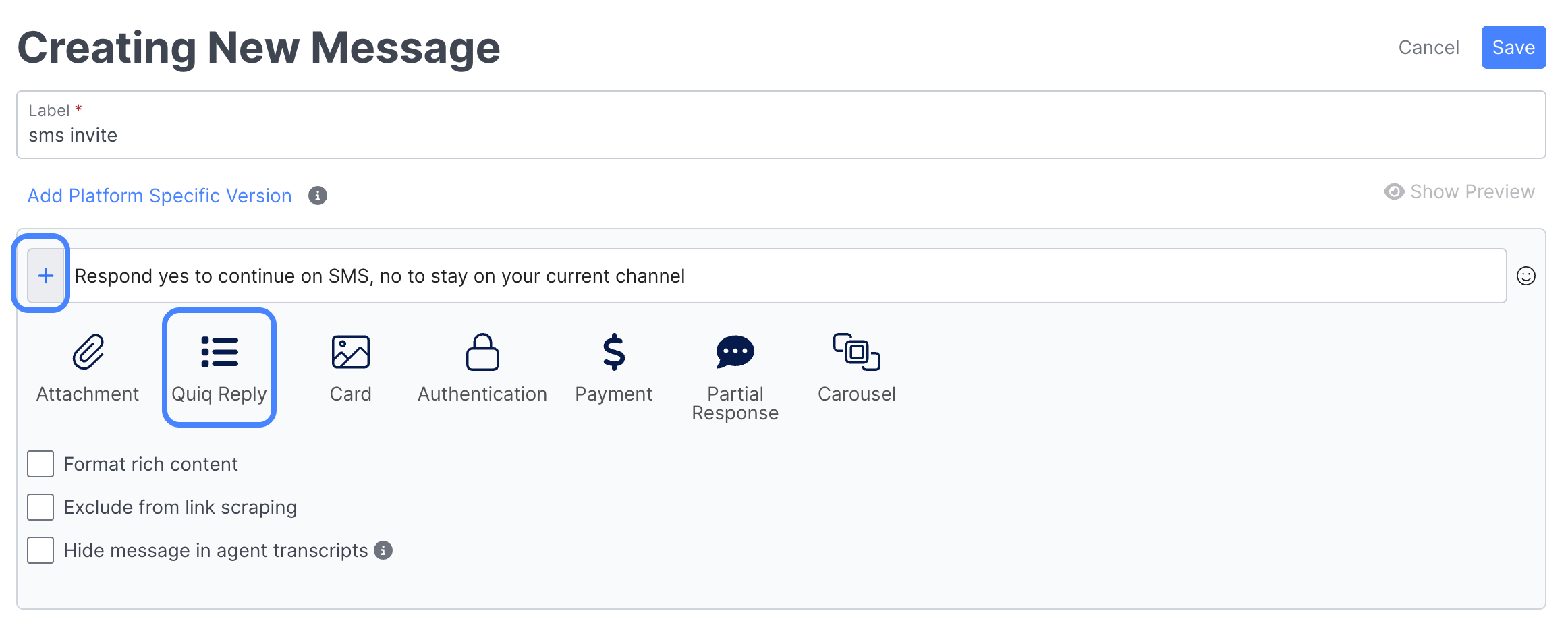
- Give your new Catalog Message a recognizable name (e.g., "SMS invite"), provide the copy you want to send to the user on the channel, and then select the Plus button and select Quiq Reply
-
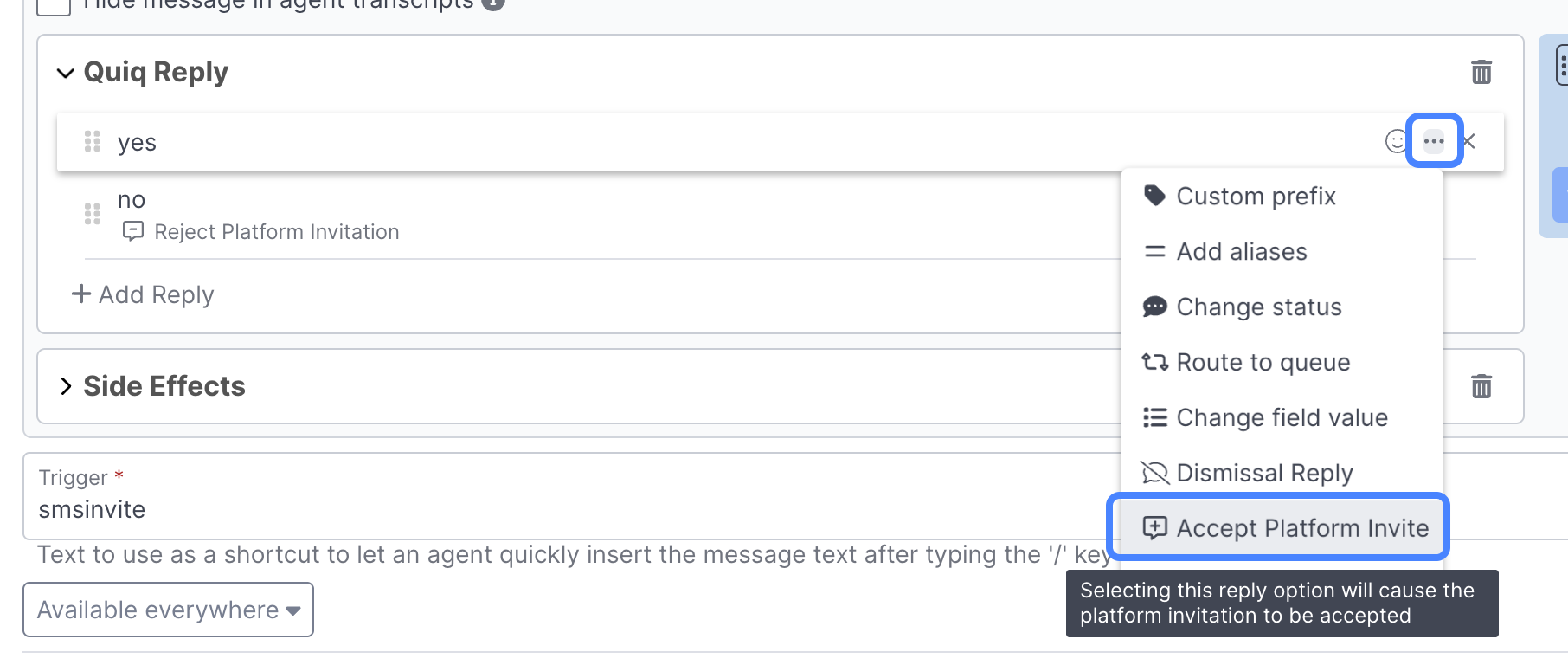
(Optional) Add Quiq Replies options for accepting and rejecting the platform invitation.
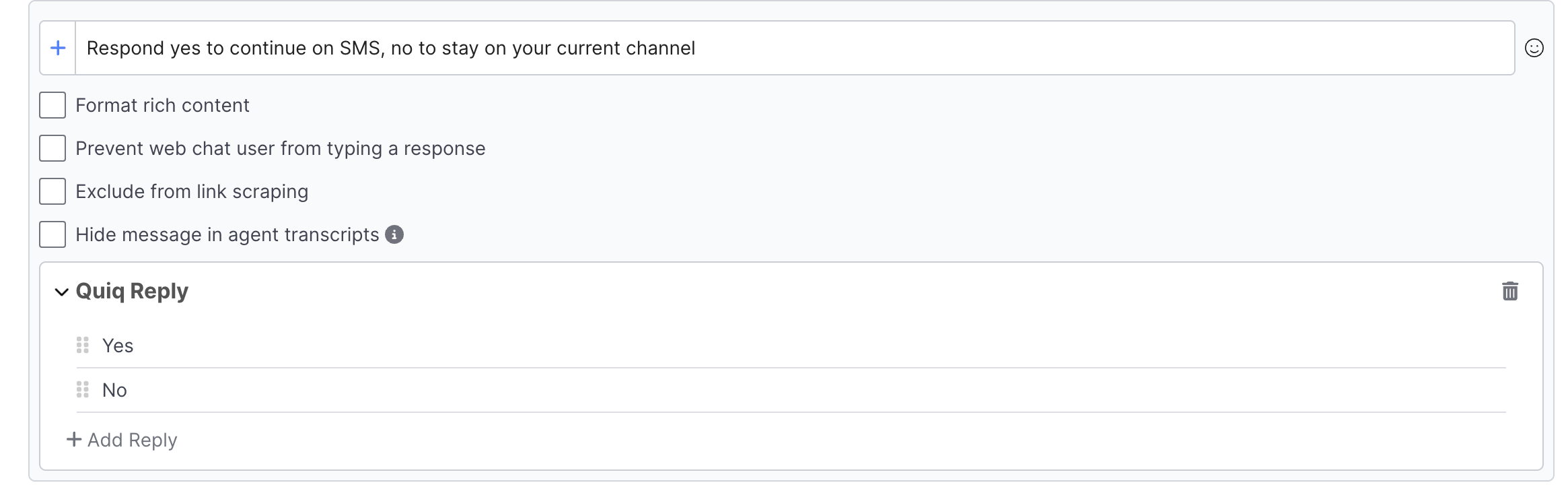
This is especially important on web chat, where a customer may incorrectly enter a phone number, and you want to ensure that the conversation isn't transferred until the customer has accepted the invite on the messaging channel.
Use the three dot menu next to your corresponding Quiq Reply and add in the Accept Platform Invite, and Reject Platform Invite. If a user rejects the platform invite, the conversation will not shift to the messaging channel the platform invite was sent on.
Part 2: Setting up your Outbound Template
Next, navigate to the AI Agent that will be leveraging your Catalog Message and add the Send Outbound Template action:

Select your newly created Catalog Message, and define the platform you'd like to send it on, optionally you can define a fallback platform if you're primary platform isn't available, and use the Advanced Settings cog to define a different field to use for the phone number.

Updated 9 months ago